
How We Deploy BI Pixie Dashboard Across Customers Using Fabric Dataflows
How we migrated BI Pixie Dashboard from a single PBIX file to a Fabric Lakehouse architecture, and the CI/CD tricks we use to deploy 20 dataflows across customer workspaces with zero item IDs to manage.
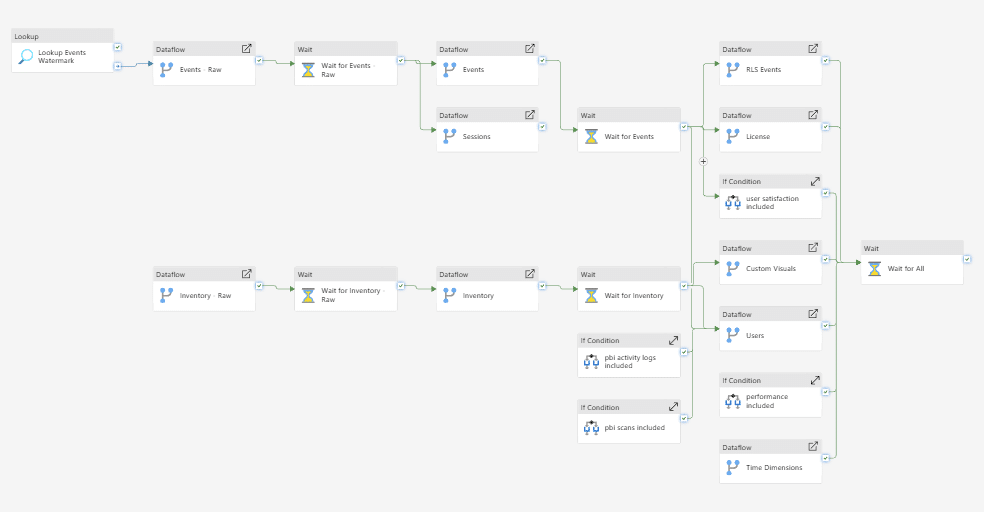
When we started building BI Pixie, the analytics dashboard was a single PBIX file. As BI Pixie grew to support enterprise BI environments where a single report can be consumed by over 1,000 end users every day, we needed an architecture that could keep up: faster refreshes, incremental data loading, and the ability for customers to host the telemetry pipeline inside their own Fabric tenant. So we made a big architectural move: we migrated the entire BI Pixie Dashboard from a monolithic PBIX import model to a Fabric Lakehouse backed by 20 interconnected Dataflows Gen2.
This post is about what we learned along the way — and three specific tricks that made it possible to deploy this across multiple customers with zero Fabric item IDs to manage.
Why We Moved to Fabric Lakehouse
The original BI Pixie Dashboard was a Power BI template app with an import semantic model. Every refresh pulled all the data from scratch. For customers with months of engagement telemetry across hundreds of reports, refresh times grew long and the single-file architecture made customization difficult.
With the Lakehouse architecture, we gained:
- Incremental refresh — Only new telemetry data is loaded on each refresh, dramatically cutting refresh time and cost.
- Direct Lake connectivity — BI Pixie reports connect directly to the Lakehouse with no import copy, giving customers near-real-time visibility into adoption, engagement, performance, user satisfaction, security, and governance.
- Customer-owned infrastructure — Enterprise customers can deploy the entire BI Pixie data pipeline in their own Fabric workspace. They own the data, control access, and can extend the semantic model with custom measures or reports.
- One governed data layer — All telemetry lands in a single Lakehouse, ready for scale and natively aligned with Fabric, Real-Time Intelligence, and future workloads like Fabric IQ and Ontology.
This is an important step toward making BI Pixie a first-class Fabric citizen and giving BI teams faster, more transparent insights into how Power BI is actually used.
The CI/CD Challenge
The BI Pixie data pipeline consists of 20 dataflows that transform raw telemetry events into the analytics model that powers the dashboard. When you create dataflows that depend on other Fabric items as source or destination, you end up with M expressions that navigate to actual Fabric item IDs — GUIDs that are unique per workspace.
To deploy the same dataflows across multiple customers, each in their own workspace, you would normally need to maintain a table of item IDs for every workspace. With 20 dataflows, a Lakehouse, and multiple deployment stages, this quickly becomes unmanageable.
We solved this with three techniques that reduced the number of Fabric item IDs we need to manage to zero.
Tip 1: Skip Dataflow Staging — Use the Lakehouse Directly
When a downstream dataflow reads from an upstream dataflow, Power Query generates navigation steps that reference the upstream dataflow’s GUID. That is one more ID to manage per workspace.
Instead, we store all intermediate results directly in the Lakehouse. Downstream dataflows read from Lakehouse tables, not from upstream dataflows. This eliminates the need for dataflow IDs entirely and reduces the navigation to just two parameters: workspace and Lakehouse.
Tip 2: Navigate by Name, Not by ID
By default, Power Query navigates to Fabric items using their IDs:
Navigation{[lakehouseId = "b223e809b-4499-..."]}[Data]You can change this to navigate by name instead:
Navigation{[lakehouseName = paramLakehouseName]}[Data]The key insight: if you use the same item name across all deployment workspaces, you only need to define the name once. It never changes. This works for Lakehouses, Warehouses, and Dataflows alike.
For BI Pixie, we define the Lakehouse name once. Every customer deployment uses the same name. Zero IDs to track.
Tip 3: Navigate by Workspace Name
The last piece is the workspace reference. Every Fabric item navigation includes a workspace ID:
Source{[workspaceId = "1ab62668-524a-..."]}[Data]Replace it with the workspace name:
Source{[workspaceName = paramWorkspaceName]}[Data]We expose a single customer-facing variable for the workspace name. Combined with Tips 1 and 2, this means the entire BI Pixie pipeline deploys with a single parameter — the workspace name. No GUIDs, no ID mapping tables, no per-customer configuration files.
How BI Pixie Customers Deploy This
Enterprise customers who want BI Pixie running in their own Fabric tenant can import our source code using Git-integrated workspaces or fabric-cicd. The deployment flow is:
- Connect your Fabric workspace to the BI Pixie repository.
- Set the workspace name variable.
- The 20 dataflows, Lakehouse, and semantic model are provisioned automatically.
- Incremental refresh begins on the first run — only new events are loaded.
No item ID management. No manual configuration of connections. One variable, and the entire analytics pipeline is running.
What This Means for BI Teams
This architecture is not just about our internal deployment. It is the foundation for giving BI teams ownership of their engagement data inside Fabric. With the data in a Lakehouse, you can:
- Build custom thin reports that connect to the BI Pixie semantic model.
- Use Copilot and AI agents to query your usage data using natural language.
- Extend the model with your own DAX measures and KPIs.
- Integrate telemetry data with other Fabric workloads.
If you are interested in deploying BI Pixie with Fabric Lakehouse in your tenant, contact us to learn more.