
BI Pixie Workload User Guide
BI Pixie is a telemetry and engagement intelligence platform for Power BI, available natively inside Microsoft Fabric. It adds invisible tracking elements called Pixies to your Power BI reports that capture how your audience uses them: page views, visual clicks, filter selections, bookmark navigation, tooltip views, drill-through actions, surveys, and feedback responses.
The Pixies are tiny, native Power BI visuals and hidden measures that work silently inside your reports. They detect interactions and send events to BI Pixie, where you can analyze adoption, engagement, and user satisfaction. Tracking is invisible to end users, and no personally identifiable information is collected by default.
How BI Pixie Works
BI Pixie runs as a workload inside Microsoft Fabric. You work with it through a BI Pixie item that lives in a Fabric workspace, alongside your lakehouses, semantic models, and reports. Here is the end-to-end flow:
- A Fabric tenant admin adds BI Pixie: From the BI Pixie page in the Fabric Workload Hub, a tenant admin selects Add to Tenant. Once added, the BI Pixie item type becomes available across the tenant so users can create it in their workspaces. See the Add BI Pixie to Your Tenant page for the admin steps.
- Create a BI Pixie item: In any Fabric workspace, choose + New and pick BI Pixie. The BI Pixie item opens with the workspace context already established by Fabric.
- Add Pixies to your reports: From the Add Pixies view, select reports in the workspace and add Pixies to them. BI Pixie writes the invisible tracking elements directly into your report definitions.
- Collect engagement data: As your audience uses the tracked reports, the Pixies stream events to BI Pixie's telemetry pipeline.
- Verify data is flowing: Use the Test Events view to confirm the Pixies are firing in real time.
- Analyze your audience: Use the BI Pixie Dashboard to analyze adoption, engagement, satisfaction, and more.
Key Features
| Feature | Description |
|---|---|
| Tracked Events | Track page views, visual clicks, filter selections, bookmark clicks, tooltip views, drill-through actions, and link clicks across all the Power BI reports in your Fabric workspaces. |
| Feedback Controls (Pro) | Add thumbs-up/down or smile/frown feedback buttons to your reports and measure user satisfaction. |
| Embedded Surveys (Pro) | Embed fully customizable surveys directly inside your Power BI reports, including NPS, business value, time-saved, decision-making, issues, and email questions. |
| RLS Auditing (Pro) | Audit Row-Level Security (RLS) in real time to detect misconfigurations, overexposed data, and potential security risks. |
| Data Management | Search, preview, and delete tracked user data. Configure data retention periods and delete end-user activity records upon request for GDPR compliance. |
| User Adoption and Attrition | Monitor who uses your reports, how often, and identify users who stopped engaging. Distinguish between active users (clicks, slicer selections) and passive users (page views only). |
| Dashboard KPIs | Track key metrics out of the box: active users, engagement rate, sessions, average session duration, pages per session, NPS, satisfaction rate, estimated business value, and estimated time saved. |
| Time Intelligence | Analyze engagement trends over time, track adoption and attrition patterns, and measure the impact of report design changes on user behavior. |
| Custom Analytics | Connect to the BI Pixie semantic model from Power BI Desktop to build your own custom report pages, visuals, and navigation links tailored to your organization's needs. |
| License Assignment (Enterprise) | Assign licenses to business units or cost centers with built-in chargeback, enabling decentralized tracking across your organization. |
| Per-License Data Isolation (Enterprise) | Each license gets its own isolated storage, ensuring strict data separation between business units or teams. |
| Data Sovereignty (Enterprise) | Telemetry is stored in the same region as your Fabric capacity, helping you meet data residency and regulatory requirements. |
| Workspace Collaboration | Team members with Contributor, Member, or Admin role on the Fabric workspace can open the BI Pixie item and configure tracking — no separate user management. |
The BI Pixie Item
When you open a BI Pixie item in a Fabric workspace, BI Pixie shows a left sidebar. Each sidebar entry opens one view that handles part of the lifecycle:
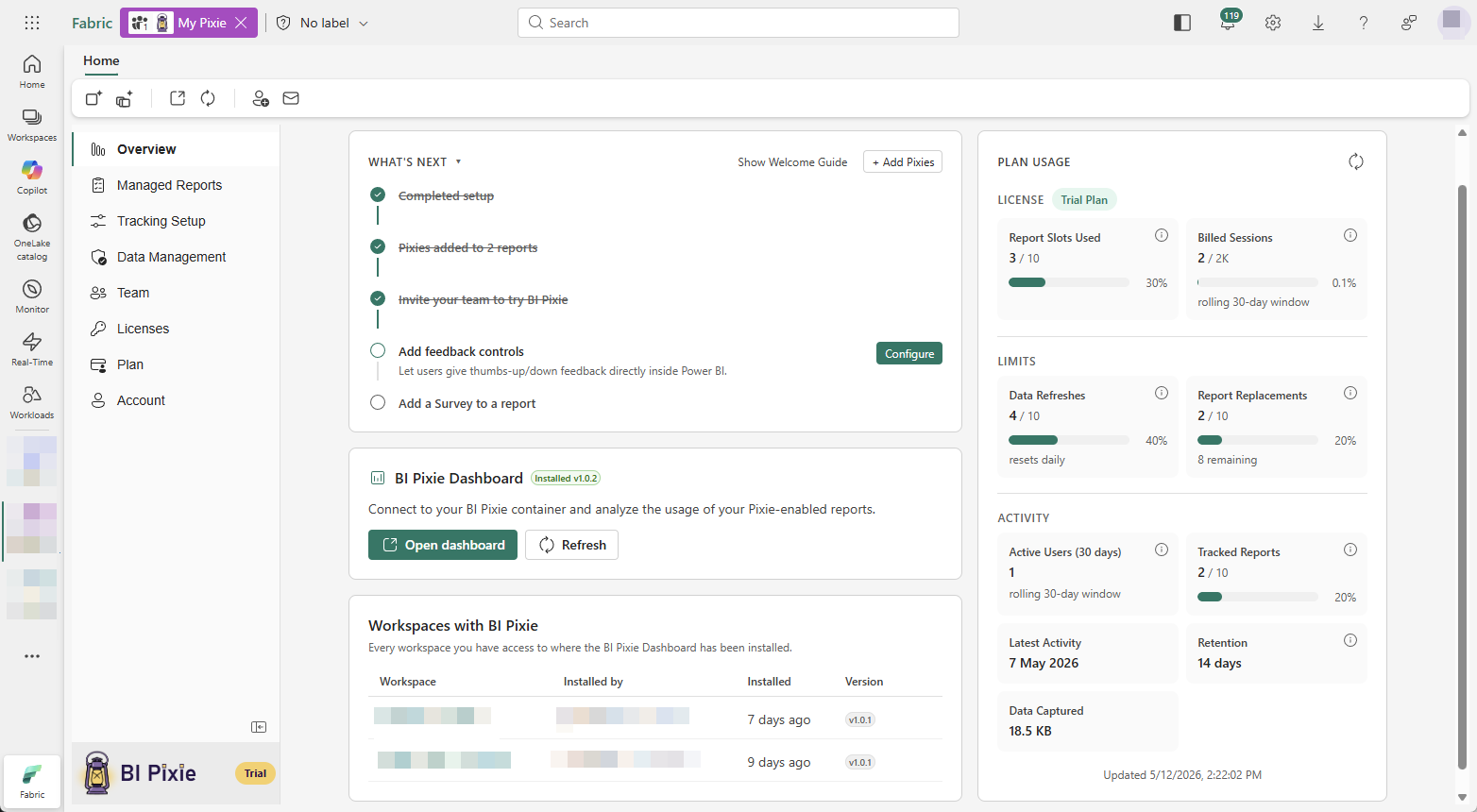
| View | Purpose | Visibility |
|---|---|---|
| Overview | Item overview, getting-started checklist, plan usage, and a one-click link to install the BI Pixie Dashboard. | Everyone |
| Managed Reports | List of all tracked reports in the workspace. Add Pixies, update them, clean, or open the source report in Fabric. | Everyone |
| Tracking Setup | Configure tracking options, feedback controls, and surveys at the item, workspace, or report level. | Everyone |
| Test Events | View incoming events in real time to verify the Pixies are firing as expected after they are added. | Everyone |
| Data Management | Manage data retention, search end-user data, and delete activity records on request. | Everyone |
| Team | Manage who can access the BI Pixie item, including admins and members. | Workspace Admin |
| Licenses | Create and assign licenses to business units or cost centers. Each license gets its own isolated storage, enabling chargeback and decentralized tracking across your organization. | Workspace Admin (Enterprise) |
| Plan | Compare plans, view current entitlements, and start or manage your subscription through the Azure Marketplace listing. | Workspace Admin |
| Account | View plan and usage details for the item. | Everyone |
The sidebar is always visible, so you can move between views quickly without leaving the BI Pixie item.
Prerequisites
- A Microsoft Fabric capacity (paid SKU or Fabric trial)
- A Fabric workspace where you have Contributor, Member, or Admin role
- BI Pixie added to your Fabric tenant — see the Add BI Pixie to Your Tenant page for tenant-admin steps
- At least one Power BI report in the workspace you want to track
What's Next
- Getting Started — Create your first BI Pixie item, add Pixies to a report, and verify events in five minutes.
- Add BI Pixie to Your Tenant — Tenant-admin steps to add BI Pixie to your Fabric tenant.
- Create a BI Pixie item — Walk through creating a BI Pixie item in a workspace.