
Getting Started
This guide walks you through signing in to BI Pixie, exploring the BI Pixie portal, and getting ready to instrument your first Power BI reports. You will be ready to track usage in minutes.
Step 1: Sign In
- Go to app.bipixie.com.
- Click Sign in with Microsoft.
- Sign in with your Microsoft work or school account (the same account you use for Power BI).
- If this is your first time, BI Pixie will provision your account automatically. You will be redirected to the Overview page.
Note: BI Pixie uses Microsoft Entra ID (Azure AD) for authentication. There is no separate registration form. Your account is created when you first sign in.
If you return later, the sign-in page will greet you with "Welcome back" and you can sign in again with a single click.
Blocked by your organization's policy?
Some organizations restrict which applications users can sign in to. If you see an error like "Need admin approval" or "AADSTS65001", your Microsoft Entra ID tenant requires an administrator to approve BI Pixie before you can use it. To resolve this:
- Ask your IT administrator to go to Microsoft Entra ID > Enterprise applications > Consent and permissions and approve BI Pixie.
- Alternatively, your admin can open the admin consent URL directly and grant consent on behalf of your organization.
- Once approved, all users in your tenant can sign in without further prompts.
This is a one-time step. If you need help, contact us and we can provide the exact admin consent link for your tenant.
Step 2: Explore the Overview Page
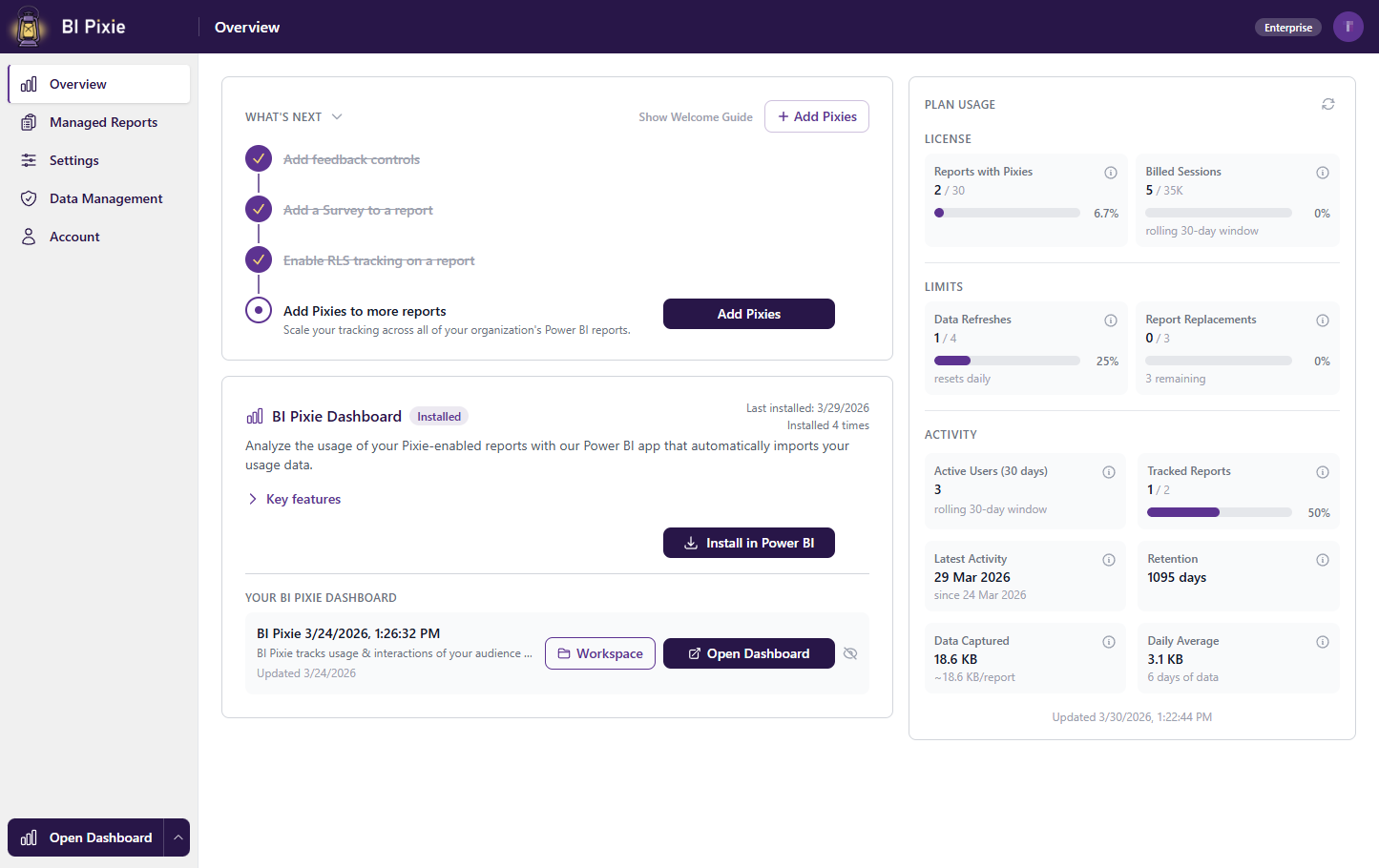
After signing in, you land on the Overview page. This is your home base in the BI Pixie portal. It contains:
Welcome Guide
A collapsible set of cards that explain what BI Pixie is and how it works. Includes a comparison table showing what BI Pixie tracks compared to native Power BI (page views, visual clicks, filter selections, bookmarks, tooltips, drill-through, and more). You can close the Welcome Guide and reopen it any time with the "Show Welcome Guide" link.
Getting Started Checklist
A step-by-step checklist that guides you through initial setup. It starts with:
- Connect to Power BI: Links to the Add Pixies page where you connect your Power BI account.
- Add Pixies to your first report: Links to the Add Pixies page to instrument a report.
- Install BI Pixie Dashboard: Install the Power BI template app to analyze your data.
After you instrument your first report, the checklist expands with additional steps like enabling feedback controls, adding surveys, enabling RLS tracking, and inviting team members. The checklist adapts based on your plan and role.
Profile Completion Card
If your profile is missing details (company name, job title, or country), a card will prompt you to complete your profile. Click the link to go to the Account page and fill in your details.
Plan Usage
Once you start collecting data, the right side of the Overview page shows your usage metrics organized into three sections: License (plan entitlements), Limits (daily quotas and replacements), and Activity (engagement data and trends):
- Reports with Pixies: How many of your plan's report slots are in use.
- Billed Sessions: Your billed sessions' usage in the rolling 30-day window. See FAQ for a detailed explanation of how billed sessions are counted.
- Data Refreshes: How many data refreshes your BI Pixie Dashboard used today.
- Report Replacements: How many report swaps you have used from your annual allowance (shown when applicable).
- Active Users (30 days): Unique users interacting with your reports in the rolling 30-day window.
- Tracked Reports: How many of your reports with Pixies have received event data.
- Latest Activity: When the most recent event was received.
- Retention: How many days of event history you are storing.
- Data Captured: Total size of your stored event data.
- Daily Average: Average data captured per day across your tracking period (shown when data spans multiple days).
Step 3: Connect to Power BI and Add Pixies
To start tracking, you need to connect your Power BI account and add Pixies to at least one report. This is covered in detail in the next guide.
- From the Overview checklist, click Connect to Power BI.
- Click Connect to Power BI to sign in and grant BI Pixie access to your workspaces.
- Select a workspace and choose which reports to track.
- Choose whether to download the report definitions as a ZIP for testing or use auto-save to write directly to your workspace. See Add Pixies to Your Reports for more details.
- Click "Download with Pixies" or "Save to Power BI" to add Pixies to the selected reports.
See Add Pixies to Your Reports for the complete walkthrough.
What's Next
- Add Pixies to Your Reports — Instrument your Power BI reports with tracking Pixies.
- Tracking Setup — Customize tracking options, enable feedback controls, and configure surveys.
- Managed Reports — View and manage your tracked reports.